We are currently experiencing a problem with our phone line. Please contact us at info@softwareacademy.co.uk with your enquiries. Apologies for the inconvenience.
If you answered “No” and wish to use the same credit/debit card we already have on file, please go to step 3.
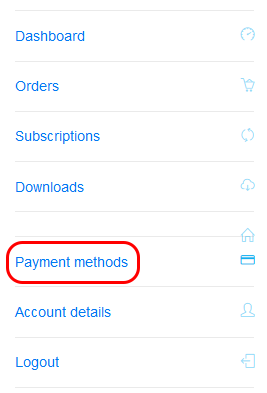
If you answered “Yes” and wish to add a new card, you’ll need to add a new credit/debit card: 1. Click Payment methods from the menu. 2. Click ADD PAYMENT METHOD 3. Add your new card details and click “Add payment method” 4. Go back to the “Payment methods” menu again, and Delete your old payment card.
Step 3: View your Subscriptions.
Click “Subscriptions” from the menu. Note: If you have more than 1 subscription, you’ll see a list. You’ll need to click the “View” button to see the details of your subscription. This subscription will usually have a “On Hold” or “Cancelled” status.
Step 4: Click "PAY".
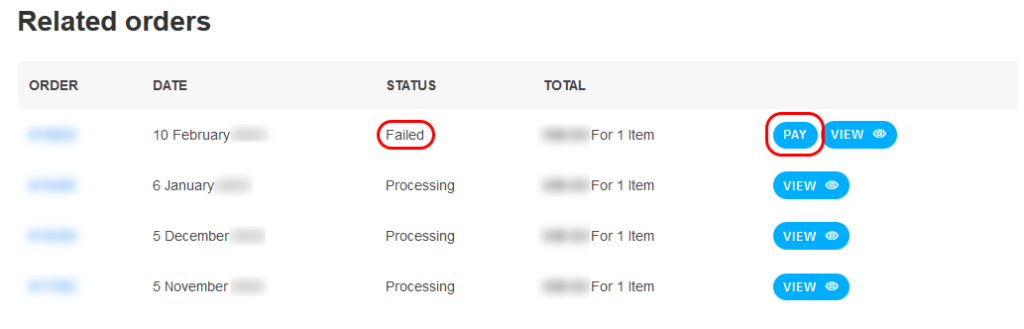
Scroll down to the “Related orders” section and find the order with a “Pending Payment” or “Failed” status, and click the “PAY” button.
Step 5: Complete your order.
Make sure the correct Credit/Debit Card is selected and complete your order by clicking “Renew Subscription“
All Done!
Well done! You’ve now renewed your payment method!