We are currently experiencing a problem with our phone line. Please contact us at info@softwareacademy.co.uk with your enquiries. Apologies for the inconvenience.
This page explains how to update your payment method. If your card is lost, stolen or expired, or you just wish to use a different card to make your recurring payments, this guide is for you!
Step 1: Go to "Payment Methods"
You must be login to your account, and then click “Payment methods”.
Tip: If you can’t remember your password, you can click on the “Lost your password?” link to reset your password.
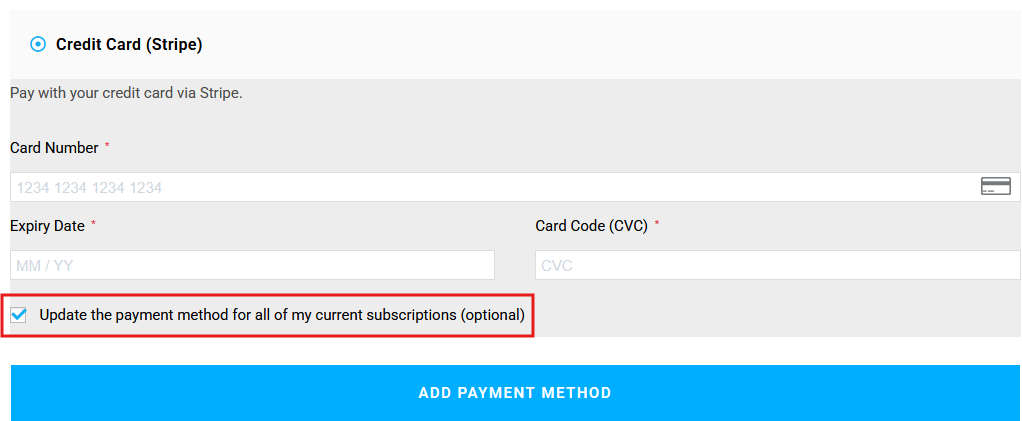
Click on Add Payment Method to add a new card. We recommend you also tick the option “Update the payment method for all my current subscriptions (optional)“
Step 3: Make Default
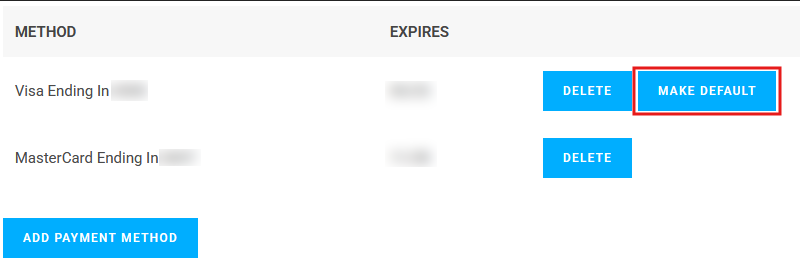
You may want to make your new card the default payment method. If so, please make sure to click on MAKE DEFAULT in front of the correct card.
Tip: You may also wish to Delete any other cards you do not want to have on file, especially if they have been lost, stolen or expired.
Important: You may see a message appear that says: “Would you like to update your subscriptions to use this new payment method“ Click “Yes” to this message.
Step 4: Check Subscriptions
View your subscriptions to ensure they are using the correct payment card.
Click “Subscriptions” from the menu. Note: If you have more than 1 subscription, you’ll see a list. You’ll need to click the “View” button to see the details of your subscription.
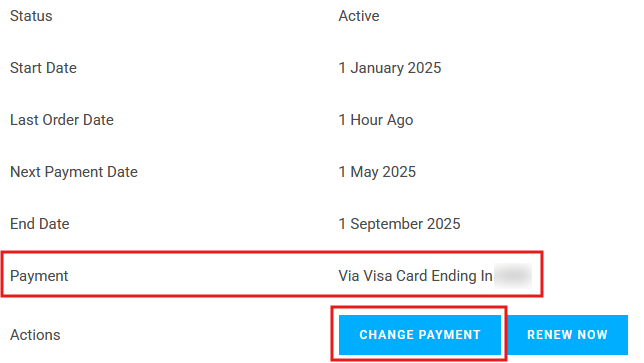
You will then be able to see the selected payment method listed in front of the “Payment” field. If this is not correct, you can select “Change Payment” to select the correct payment method.
Tip: If your latest subscription payment failed, you will need to also click “Renew Now” to reactivate your subscription.
All Done!
Well done! You’ve now renewed your payment method!